vscode筆記
vscode貼上圖片
在偏好設定,如圖
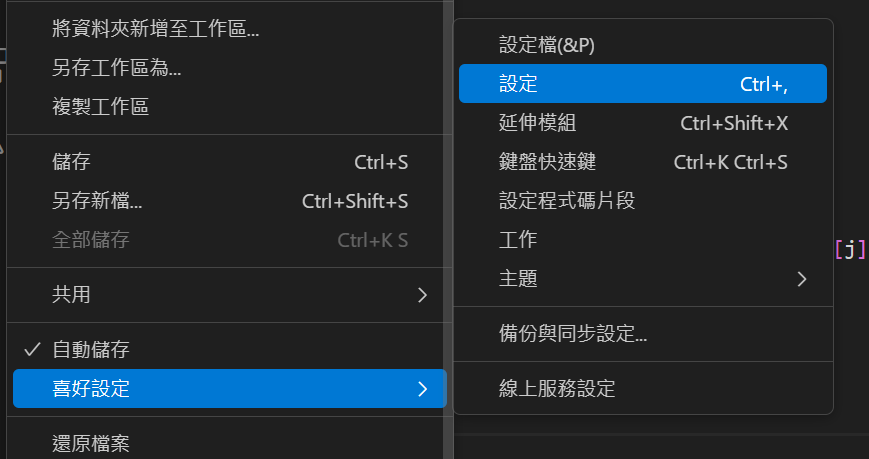
搜尋:
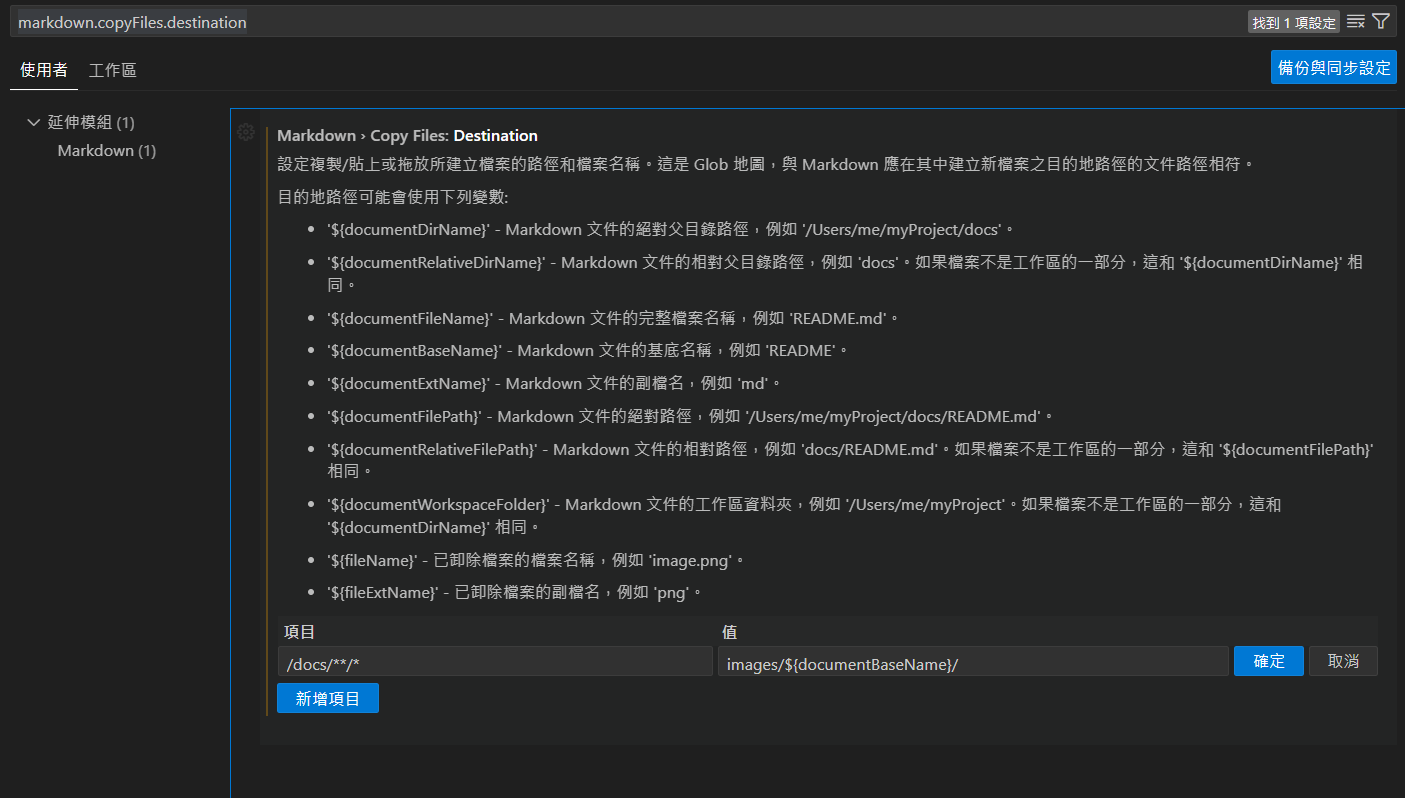
markdown.copyFiles.destination
新增項目:
docs/md/**/*
值:
${documentWorkspaceFolder}/docs/images/${documentBaseName}.png
結果如下圖,按下確定:
把vscode終端機預設為conda
輸入
>Open User Settings (JSON)

點進去之後,在"terminal.integrated.profiles.windows":裡面新增以下
        "conda": {
            "path": "C:\\WINDOWS\\System32\\cmd.exe",
            "args": [
                "/K",
                "C:\\ProgramData\\anaconda3\\Scripts\\activate.bat",
                "C:\\ProgramData\\anaconda3"
            ]
        }
如果希望是直接進入某一個環境(ex. PEICD100)
        "conda": {
            "path": "C:\\Windows\\System32\\cmd.exe",
            "args": [
                "/K",
                "call C:\\ProgramData\\anaconda3\\Scripts\\activate.bat C:\\ProgramData\\anaconda3 && conda activate PEICD100"
            ]
        }
最後會變成
{
    // 預設UTF-8
    "files.encoding": "utf8",
    // 讓 Code Runner 將 C++ 執行在終端機中
    "code-runner.runInTerminal": true,
    //先儲存再執行
    "code-runner.saveFileBeforeRun": true,
    // 預設 conda 開始
    "terminal.integrated.profiles.windows": {
        "PowerShell": {
            "source": "PowerShell",
            "icon": "terminal-powershell"
        },
        "Command Prompt": {
            "path": [
                "${env:windir}\\Sysnative\\cmd.exe",
                "${env:windir}\\System32\\cmd.exe"
            ],
            "args": [],
            "icon": "terminal-cmd"
        },
        "Git Bash": {
            "source": "Git Bash"
        },
        "conda": {
            "path": "C:\\Windows\\System32\\cmd.exe",
            "args": [
                "/K",
                "call C:\\ProgramData\\anaconda3\\Scripts\\activate.bat C:\\ProgramData\\anaconda3 && conda activate PEICD100"
            ]
        }
    },
    "terminal.integrated.defaultProfile.windows": "conda",
    "terminal.integrated.enableMultiLinePasteWarning": "always",
    // 預設 conda 結束
    "workbench.editorAssociations": {
        "*.pdf": "pdf.view",
        "*.xlsx": "gc-excelviewer-excel-editor"
    },
    "security.workspace.trust.untrustedFiles": "open",
    "explorer.sortOrder": "type",
    "[python]": {
        "diffEditor.ignoreTrimWhitespace": false,
        "editor.defaultColorDecorators": "never",
        "editor.formatOnType": true,
        "editor.wordBasedSuggestions": "off"
    },
    "git.openRepositoryInParentFolders": "never",
    "files.associations": {
        "*.md": "markdown",
        "*.txt": "chatagent"
    },
    "workbench.secondarySideBar.defaultVisibility": "hidden",
    "editor.formatOnSave": true,
    // C++ 格式化設定
    "C_Cpp.clang_format_style": "{ BasedOnStyle: Google, IndentWidth: 4, ColumnLimit: 0 }",
    // txt 邊界換行
    "[plaintext]": {
        "editor.wordWrap": "on"
    },
    "workbench.settings.applyToAllProfiles": [
        "markdown.copyFiles.destination"
    ],
    "markdown.copyFiles.destination": {
        "docs/**/*": "images/${documentBaseName}/"
    },
    "xlsxViewer.md.wordWrap": false,
    "xlsxViewer.md.syncScroll": false,
    "xlsxViewer.md.previewPosition": "right",
    "xlsxViewer.md.stickyToolbar": false,
    "documentViewer.readOnly": false,
    "chatgpt.localeOverride": "zh-TW",
    "http.systemCertificatesNode": true,
    "chat.tools.terminal.autoApprove": {
        "/^powershell -Command \"Get-Date -Format 'yyyyMMdd_HHmmss'\"$/": {
            "approve": true,
            "matchCommandLine": true
        },
        "/^call \"C:\\\\ProgramData\\\\Anaconda3\\\\Scripts\\\\activate\\.bat\" \"C:\\\\ProgramData\\\\Anaconda3\" ; conda env list$/": {
            "approve": true,
            "matchCommandLine": true
        }
    },
    // =========================
    // 封鎖所有 AI 自動在編輯器內顯示文字(ghost text / inline suggestion / hint)
    // =========================
    // VS Code 核心:關閉 inline suggest(多數 AI ghost text 都走這個)
    "editor.inlineSuggest.enabled": false,
    // VS Code 核心:關閉 hover(常見的「Press Ctrl+I...」類型提示來源之一)
    "editor.hover.enabled": "off",
    // VS Code 核心:關閉以文字為基礎的建議(避免外掛假裝是一般字詞建議)
    "editor.wordBasedSuggestions": "off",
    "editor.suggest.showWords": false,
    // Gemini Code Assist:關掉自動 inline suggestions / next edit prediction / inline hint
    "geminicodeassist.project": "eminent-age-hlf0d",
    "geminicodeassist.inlineSuggestions.enableAuto": false,
    "geminicodeassist.inlineSuggestions.nextEditPredictions": false,
    "geminicodeassist.displayInlineContextHint": false,
    "geminicodeassist.chat.automaticScrolling": true,
    // GitHub Copilot:全面關閉
    "github.copilot.enable": {
        "*": false,
        "plaintext": false,
        "markdown": false,
        "scminput": false
    },
    // Codeium:全面關閉(避免在編輯器自動補全)
    "codeium.enableConfig": {
        "*": false
    },
    "workbench.editor.empty.hint": "hidden",
    "git.autofetch": true,
    "editor.largeFileOptimizations": false,
    "cmake.showConfigureWithDebuggerNotification": false,
    "files.autoSave": "afterDelay",
    "git.enableSmartCommit": true,
    "editor.fontFamily": "Cascadia Mono, Consolas, 'Courier New', monospace",
    "files.autoSave": "afterDelay",
    "security.allowedUNCHosts": [
        "vmware-host"
    ],
    //在寫 C++ 時 VS Code 會把你剛剛自動插入在空白行上的縮排空白視為「可修剪的自動空白」,當游標離開那一行(你按第二次 Enter 就離開了)就把它刪掉。
    //以下是關閉他的方法
    "[cpp]": {
        "editor.trimAutoWhitespace": false
    },
    "[c]": {
        "editor.trimAutoWhitespace": false
    }
}
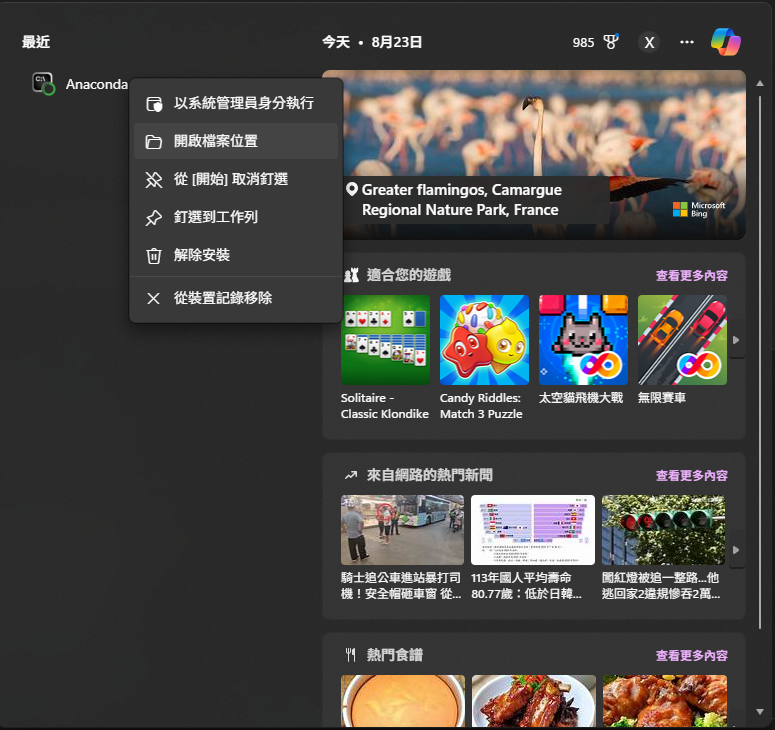
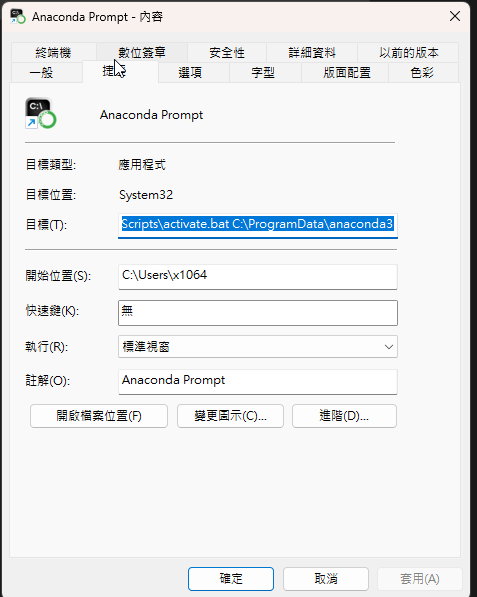
這些參數可以在這裡找:
使用vscode撰寫c++
mingw設置
資料來源:
1.https://ithelp.ithome.com.tw/articles/10190235
2.https://blog.yangjerry.tw/2021/09/24/vscode-cpp-2021-part1/
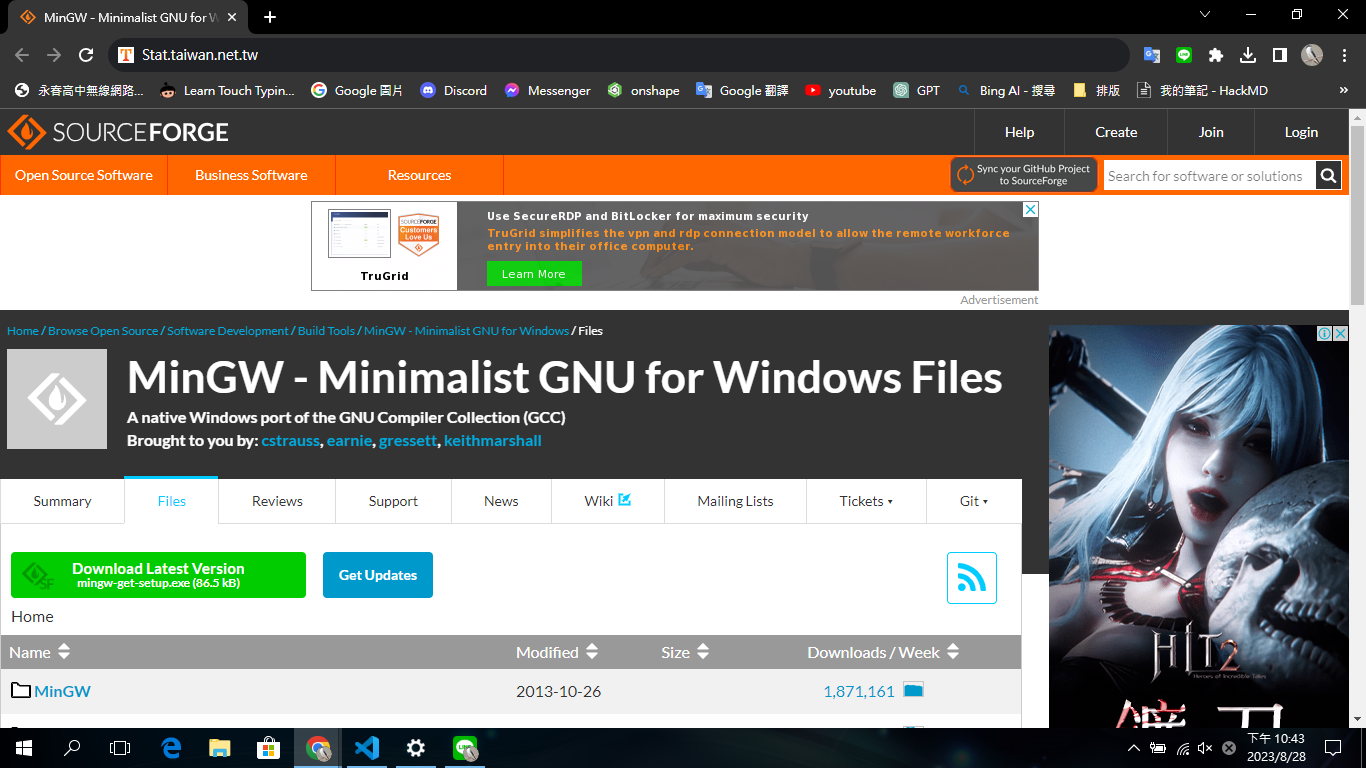
下載網址,按綠色那個
https://sourceforge.net/projects/mingw/files/
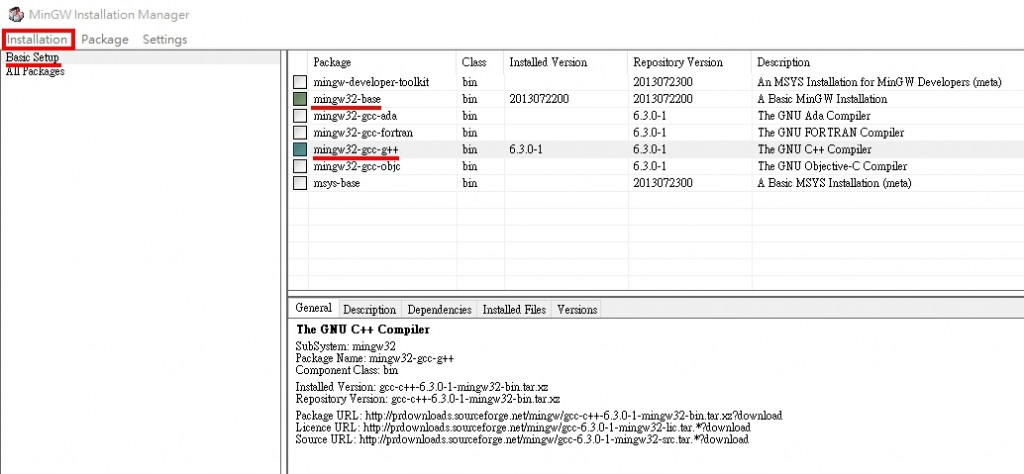
安裝完後會跳出視窗選擇要安裝的套件,這裡選擇 base 和 g++,選好後點左上角的 Installation 選 Apply Change 開始安裝。
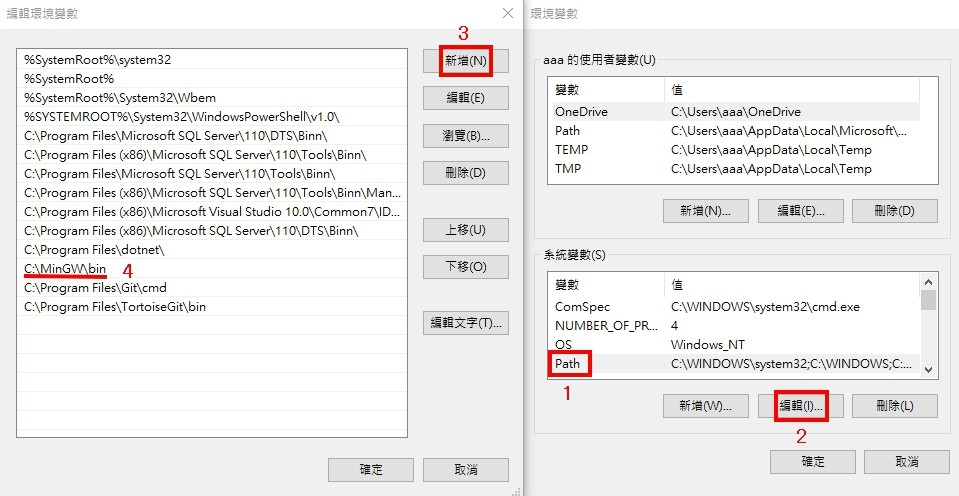
安裝完後要將 MinGW 的安裝路徑 C:\MinGW\bin (自己的位置)加入系統環境變數。
我的電腦 -> 右鍵內容 -> 左邊選單 進階系統設定 -> 進階 環境變數。
完成
vscode設置
下載這些
1.偵錯/自動填字用
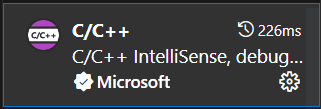
按下後可設定
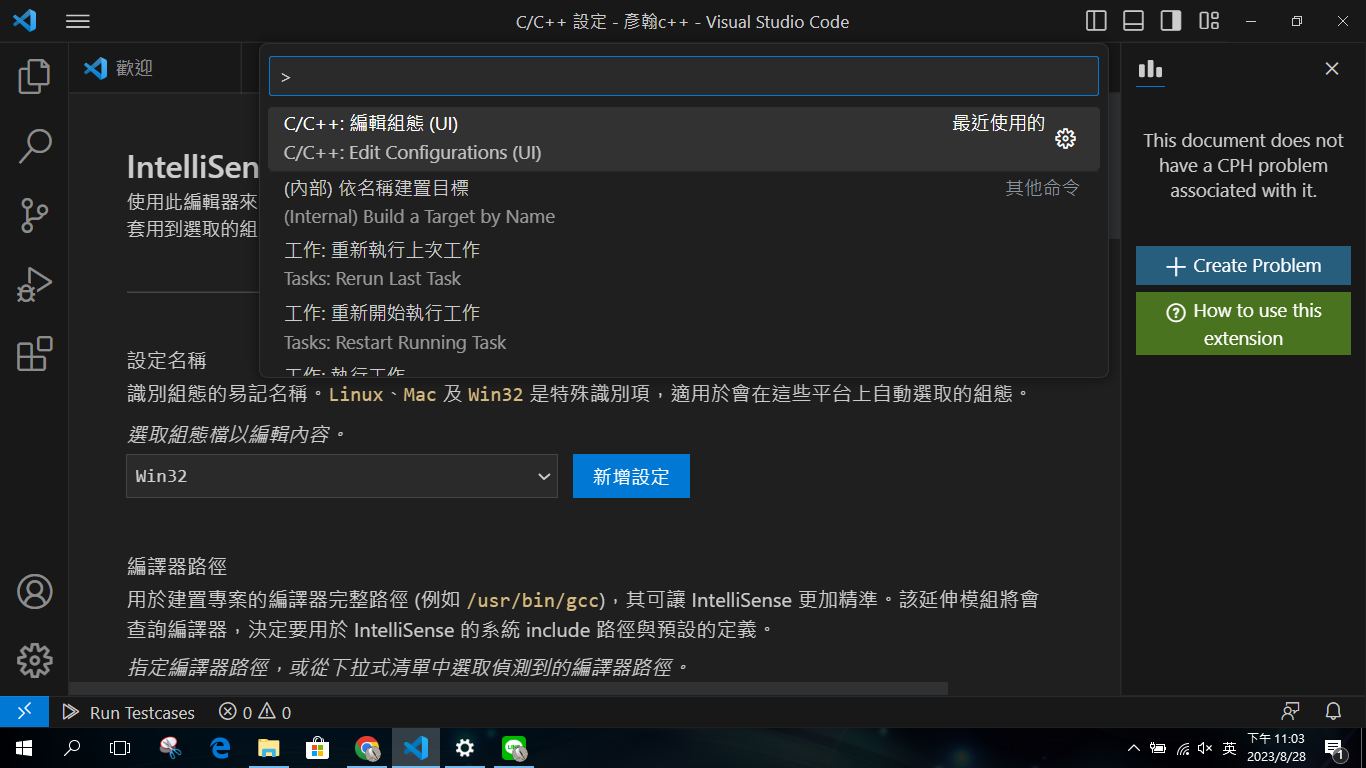
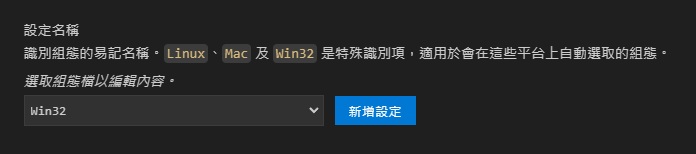
選這些


CPH 對測資答案

以下為其他網站之資料:https://hackmd.io/@smallshawn95/vscode_write_cpp_2
Code Runner
能夠讓執行程式更方便的延伸模組,極度推薦安裝。
連結:https://marketplace.visualstudio.com/items?itemName=formulahendry.code-runner
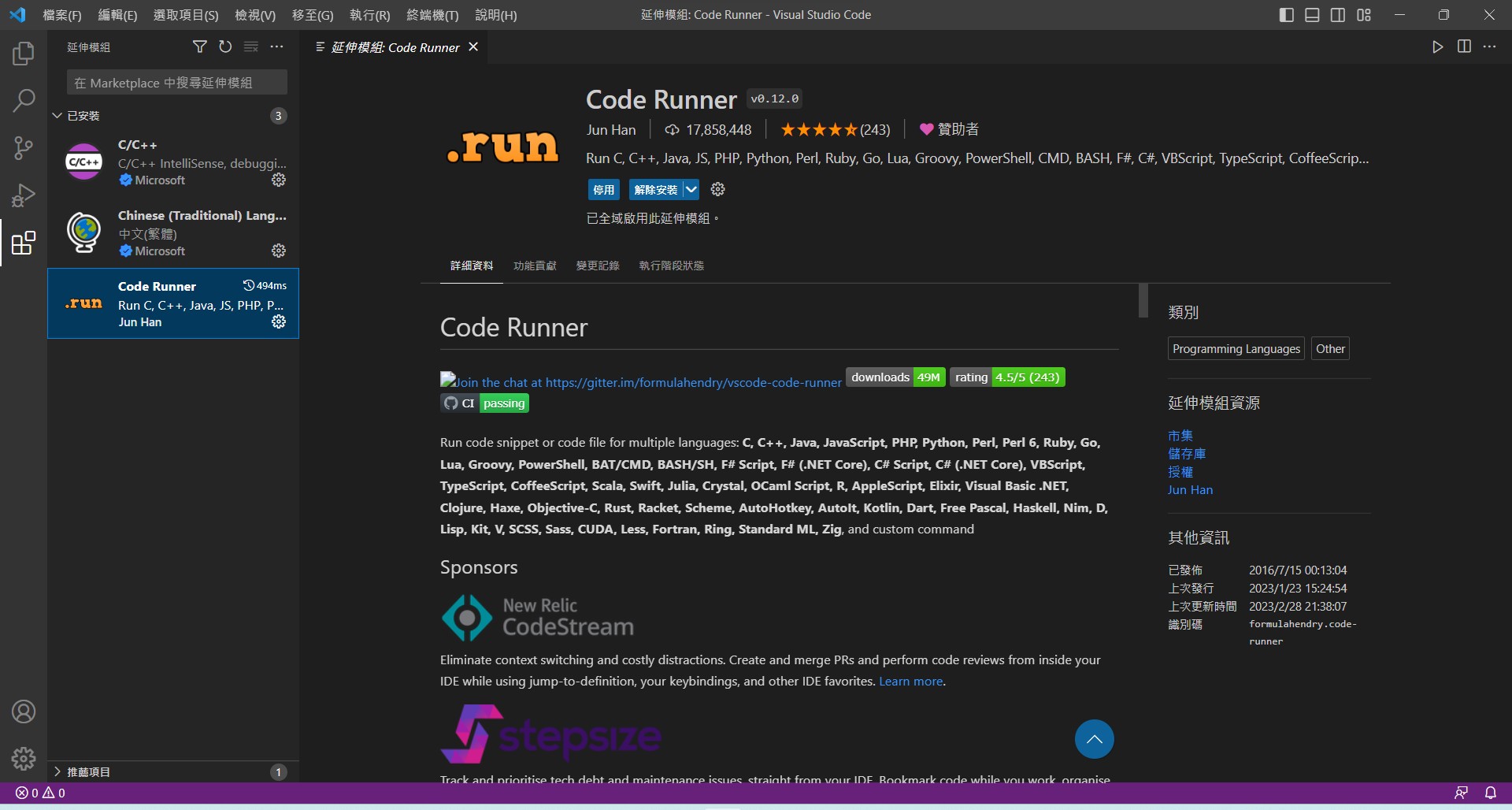
設置 Vscode 環境:
查詢框輸入 > Open User Settings,打開 Vscode Setting Json 檔。
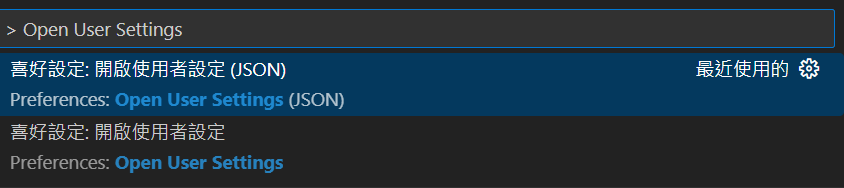
{
    // 讓 Code Runner 將 C++ 執行在終端機中
    "code-runner.runInTerminal": true,
    // 預設 C++ 程式碼的編碼方式為 Big5(繁體中文標準庫)
    "[cpp]":{
        "files.encoding": "cp950"
    },
    //先儲存再執行
    "code-runner.saveFileBeforeRun": true
}
執行程式:
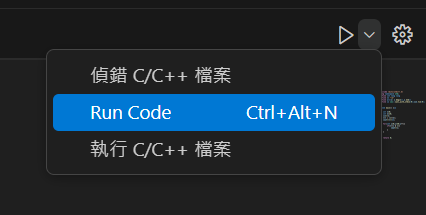
題外話
執行時要儲存:ctrl+s,或是選擇自動儲存
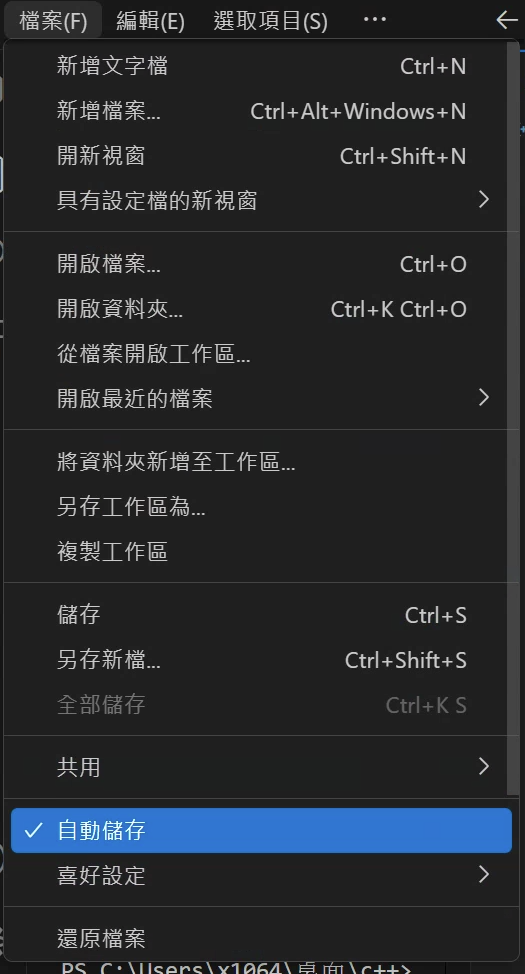
- 或是確保json設定檔有加上
//先儲存再執行
"code-runner.saveFileBeforeRun": true
變更執行程式快捷鍵
- 找到快捷鍵設定
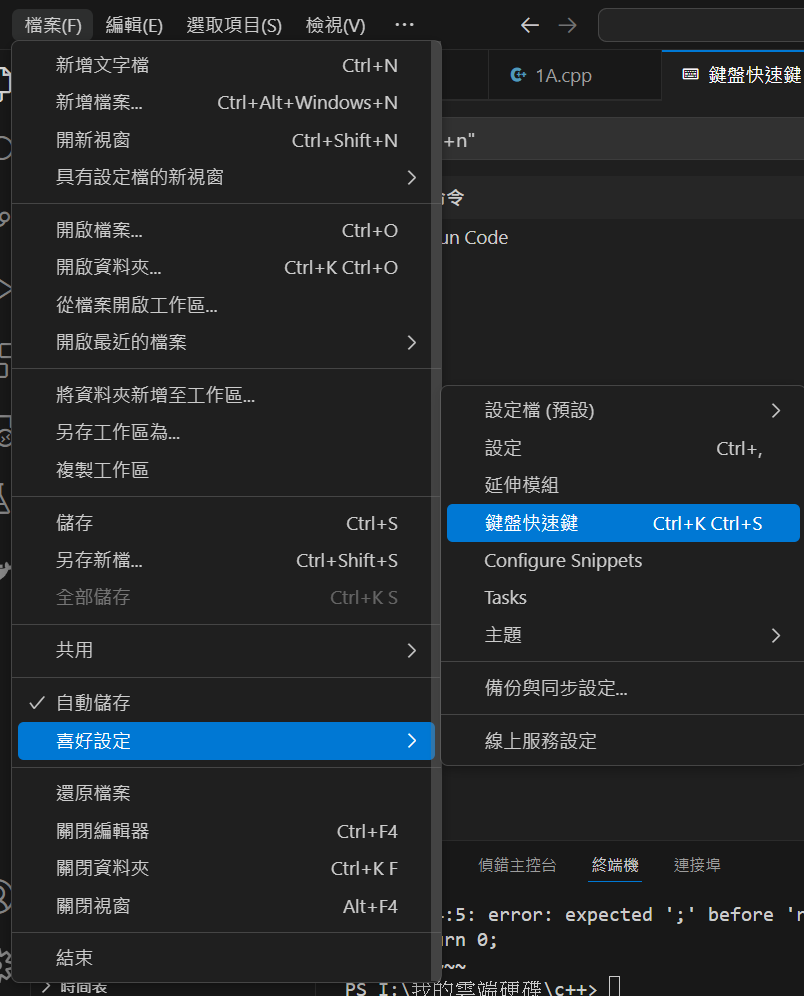
- 輸入"ctrl+alt+n",變更為F9
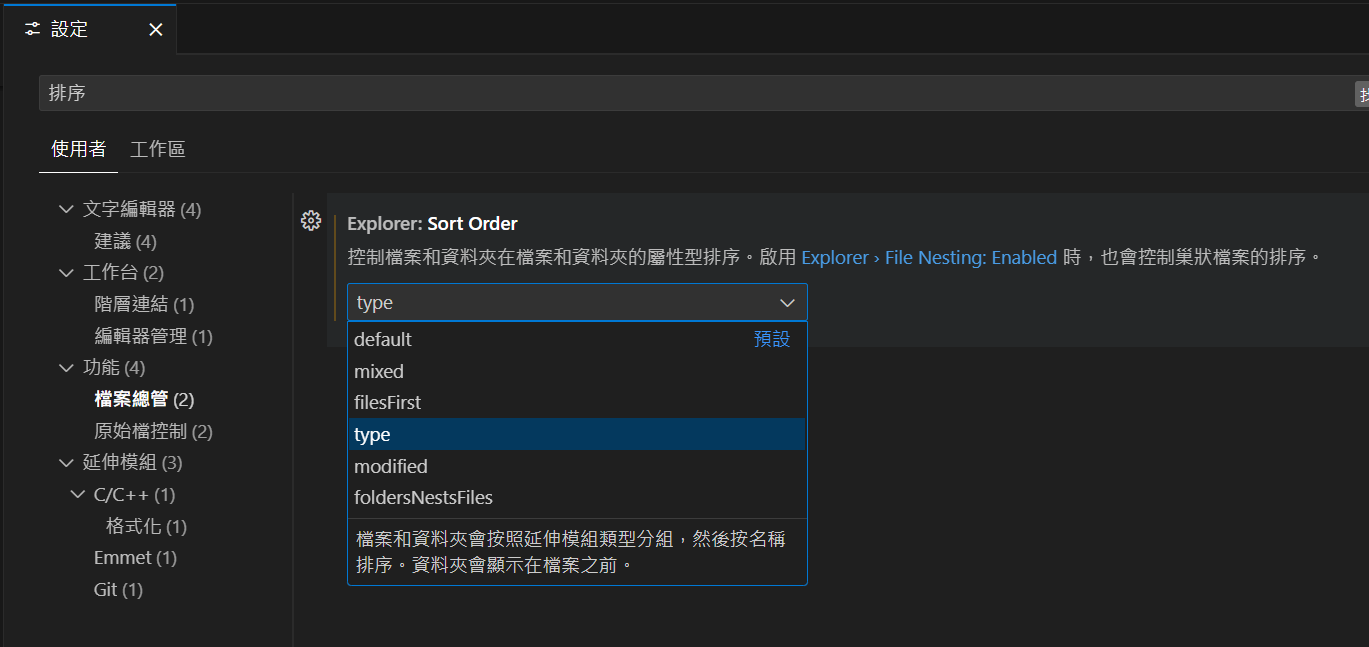
設定左側檔案排序方式
- 找到設定
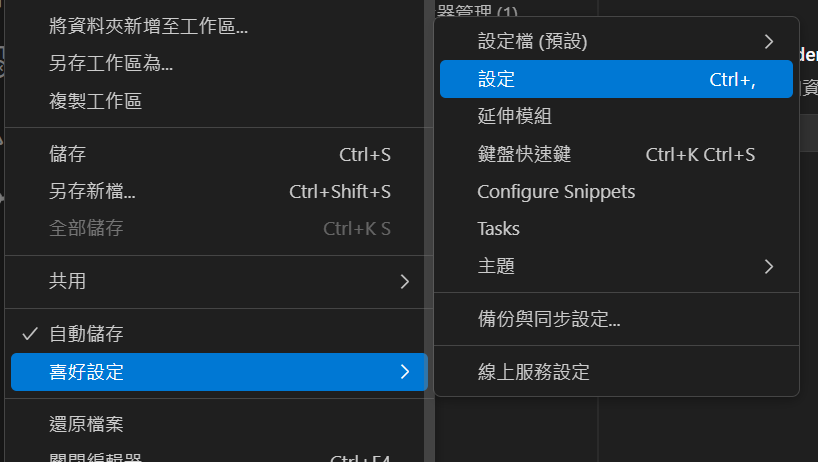
- 選擇以type排序
使用chroombook
codeblocks-----
sudo apt update
sudo apt install codeblocks
sudo apt update
sudo apt install g++
vscode-----
來源:https://code.visualstudio.com/docs/setup/linux
將下面全部執行
sudo apt-get install wget gpg
wget -qO- https://packages.microsoft.com/keys/microsoft.asc | gpg --dearmor > packages.microsoft.gpg
sudo install -D -o root -g root -m 644 packages.microsoft.gpg /etc/apt/keyrings/packages.microsoft.gpg
sudo sh -c 'echo "deb [arch=amd64,arm64,armhf signed-by=/etc/apt/keyrings/packages.microsoft.gpg] https://packages.microsoft.com/repos/code stable main" > /etc/apt/sources.list.d/vscode.list'
rm -f packages.microsoft.gpg
sudo apt install apt-transport-https
sudo apt update
sudo apt install code # or code-insiders
關閉自動修剪空白
在寫C++時VS Code 會把你剛剛自動插入在空白行上的縮排空白視為「可修剪的自動空白」,當游標離開那一行(你按第二次 Enter 就離開了)就把它刪掉。
以下是關閉他的方法
"[cpp]": {
    "editor.trimAutoWhitespace": false
},
"[c]": {
    "editor.trimAutoWhitespace": false
}